

Eleven of the same photo
You took a burst to get one good one. You kept all eleven.
 Private by design
Your iPhone is full, but the photos on it are memories — and "select all, delete" has never felt like an option. BooClean is a cleaner built around the decision, not the delete button: set a goal, shrink what you'd rather keep, and park anything you're not sure about.
Private by design. Your photos stay on your iPhone.
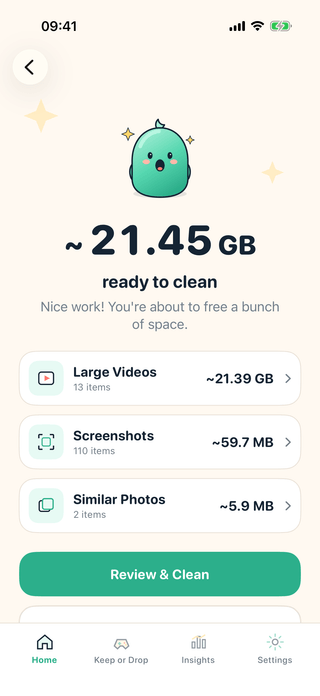
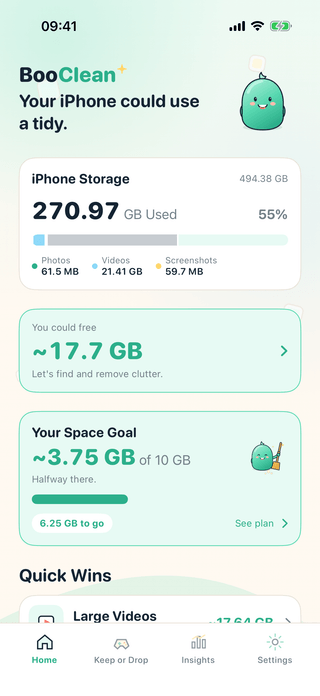
It is never the memories taking up the room. It is the eleven near-identical photos of the same coffee, the screenshots you needed for four minutes in March, and one 4K video of somebody's dog.
You took a burst to get one good one. You kept all eleven.

A boarding pass, a recipe, a wifi password. All still here.

Four minutes at 4K is a gigabyte you will never watch back.

 Find the clutter
One scan reads your photo library on your iPhone and sorts it into the three piles that actually account for the space — with real sizes, so you know what a decision is worth before you make it.
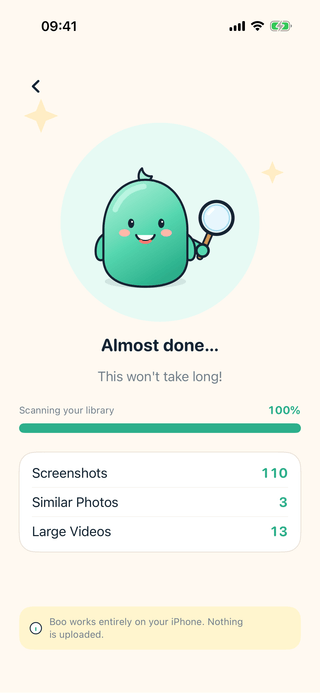
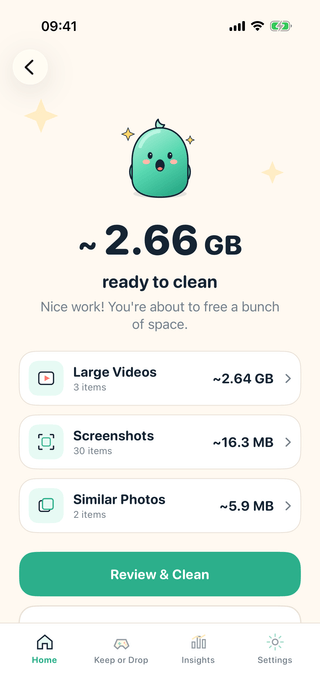
Bursts, retakes and near-identical shots grouped together, with a suggested keeper so you are choosing between a handful instead of scrolling for an hour.
Sorted by age, because the receipt you screenshotted eight months ago is a much easier decision than the one from this morning.
The handful of clips quietly holding gigabytes, with length, size and date so the trade-off is obvious before you decide.
BooClean works on your Photos library only. It cannot see app caches, system storage or other apps' data — iOS does not give any app that access, and BooClean does not claim otherwise.
 Keep or Drop
Catch what matters. Let the rest go.
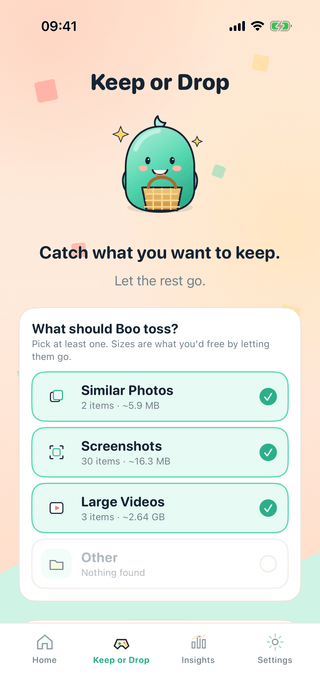
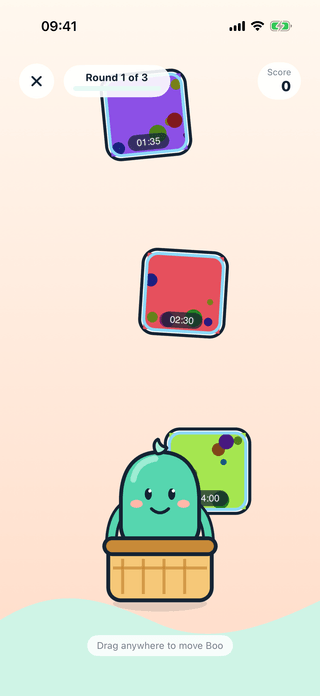
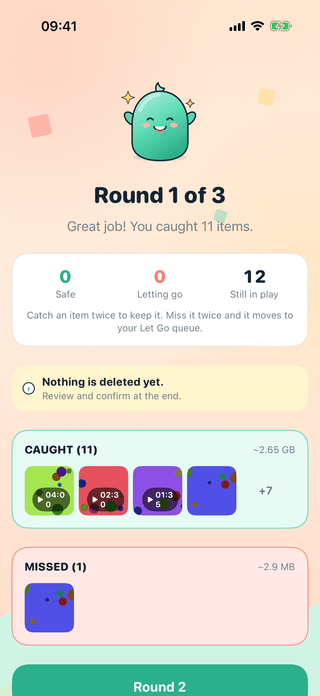
Choose which categories a session draws from — the items you keep putting off, not the ones you already know about.
Items fall one at a time. Catching one keeps it. It runs best of three rounds, so one fumbled catch never decides anything.
Missing something twice moves it to the Let Go queue. Anything still undecided is kept, and every let-go item can be rescued on the session review screen.
Nothing is deleted during Keep or Drop. Not one item, under any circumstances. Deletion lives behind Final Review, and it takes an explicit confirmation from you — followed by the iOS confirmation.
 Space Goal
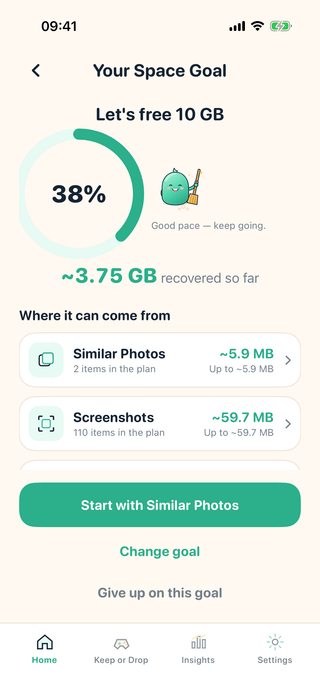
Set a space goal and let BooClean build a cleanup plan around it. Instead of a wall of everything at once, you get an order to work in and a number that moves as you go.
The plan is built from your own scan on your own device. BooClean will not promise a figure it has not found, and a goal is always optional.
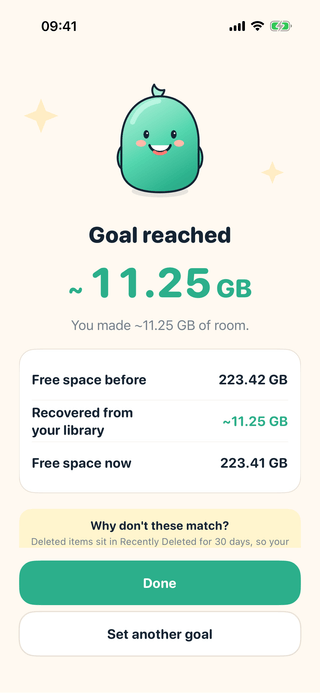
When you reach a goal, BooClean shows what you started with, what came out of your library, and where you are now — and explains why those do not add up. Deleted items sit in Recently Deleted for thirty days, so your free space catches up over time.
Shrink It
Large video you don't want to delete? Shrink it instead. BooClean makes a smaller copy on your iPhone, shows you exactly what it saved, and leaves the original alone until you say otherwise.
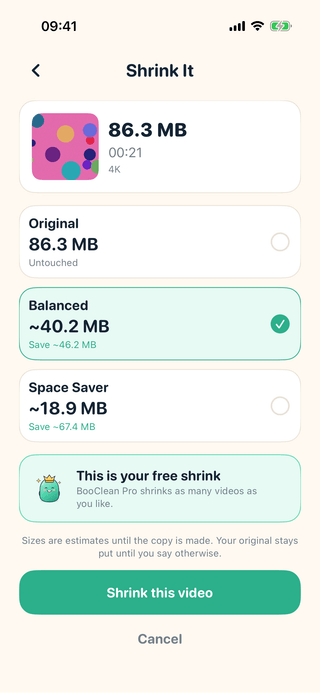
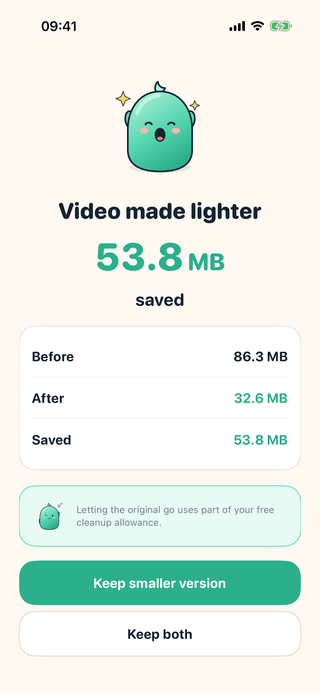
Compression uses Apple's own media framework, locally. Nothing is uploaded, and there is no server involved at any point.
Before it runs, BooClean shows an approximate result marked with a ~. The exact size is only knowable once the copy exists, and that is the figure it reports afterwards.
Keep both, or let the original go. Letting it go moves it into the same review queue as everything else, and you still confirm before anything is deleted.
A smaller copy is a smaller copy: it is re-encoded, so it is not identical to the original. BooClean tells you when a clip is HDR or slow motion, because those lose something a re-encode cannot give back.
 Boo Box
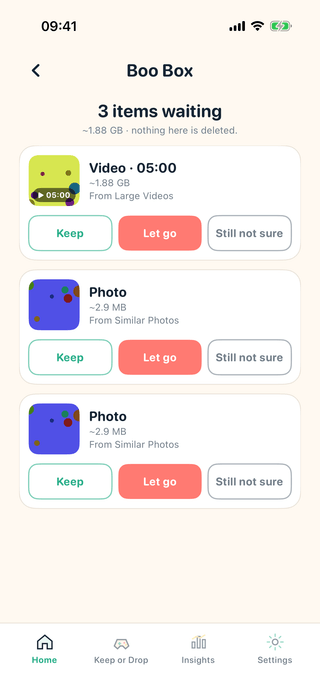
Put it in Boo Box and come back later. Most cleaners give you two answers — keep or delete — and treat hesitation as a failure. Boo Box treats it as an answer.
If you delete something elsewhere, its entry quietly disappears from the box.
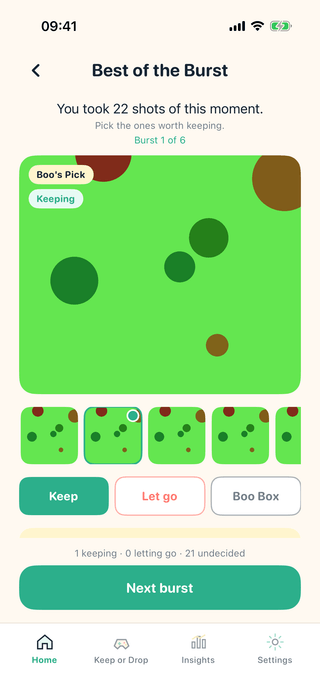
Best of the Burst
Find the shots worth keeping without staring at a wall of near-identical pictures. BooClean groups the shots your camera actually recorded as a burst, shows them one at a time, and marks the one it would keep.
Real bursts only. BooClean uses the burst information your camera recorded, and does not guess that quick shots must have been one.
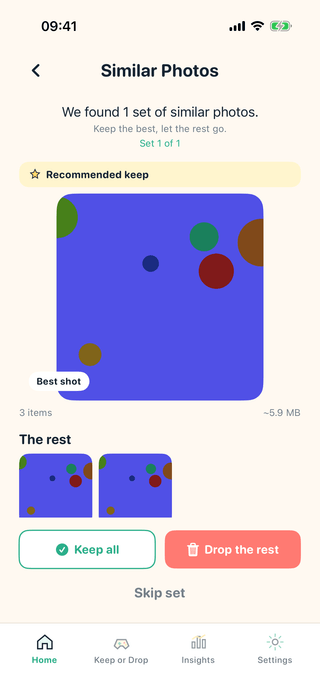
Similar Photos
BooClean groups likely lookalikes on your device and marks a suggested keeper — usually the sharpest and highest-resolution shot in the set. It is a suggestion, not a verdict: you keep whichever you want, and you can keep the whole set.
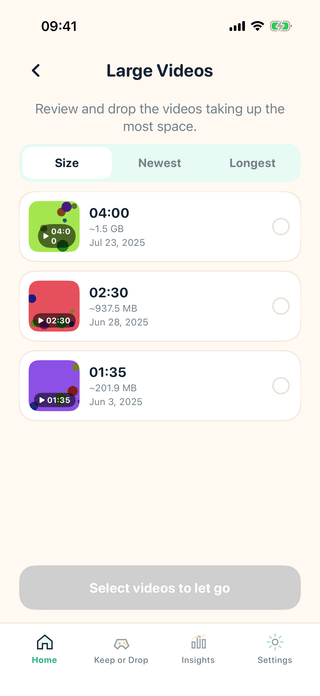
Large Videos
A few long clips usually account for more space than thousands of photos. BooClean lists them biggest first, with duration and date, so one decision can free more room than an afternoon of scrolling.
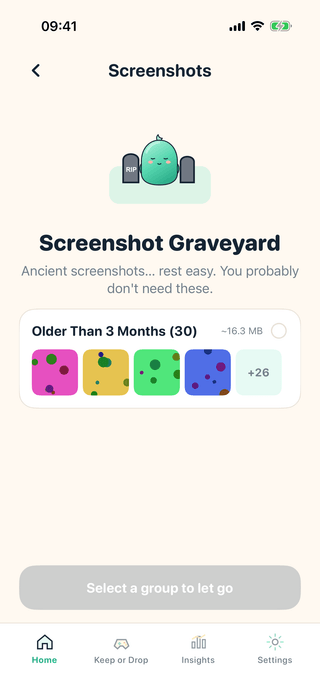
Screenshot Graveyard
Screenshots are grouped by age, so you are not deciding about them one at a time. The older the group, the easier the call — and the whole group goes to the review queue in a single tap.
 Insights
After a scan, BooClean turns what it found into three plain-English readings — all calculated on your device from your own library.
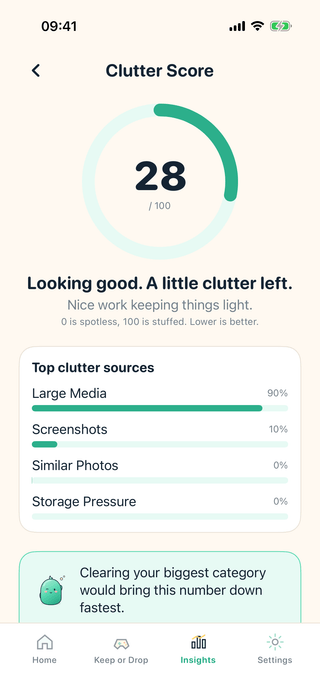
One number from 0 to 100 for how stuffed your library is, with the categories driving it most listed underneath. Lower is lighter.
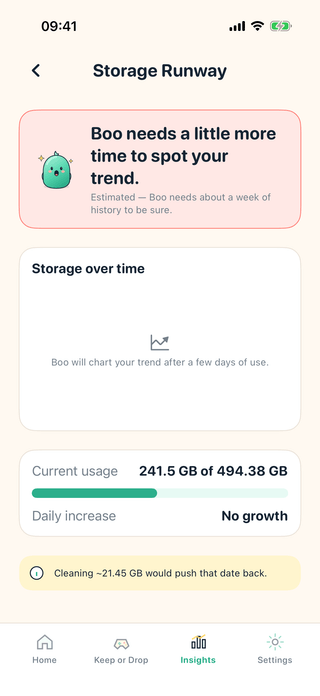
An estimate of how long your free space might last, based on how your own storage has been trending. It is labelled Estimated in the app, and it says so plainly until it has enough days of history to be worth anything.
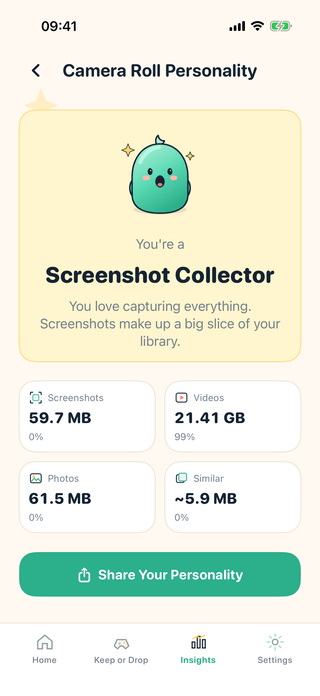
The fun one. Screenshot Collector, Tidy Camera Roll, and a few others — worked out from the mix of what is actually in your library.

 Privacy
A photo cleaner is asking for the most personal folder on your phone. BooClean's answer is the simplest one available: the photos never go anywhere.
 BooClean Pro
Two plans, both billed by Apple, both cancellable from your iPhone in about fifteen seconds. No countdown timers, no invented discounts.
See your local App Store price
Billed once a year and renews automatically until cancelled. Works out cheaper per month than the monthly plan.
See your local App Store price
Billed monthly and renews automatically until cancelled. Stop whenever you like.
Pro then unlocks unlimited cleanup with no item or size limits, plus the full insight screens. There is no free trial at launch.
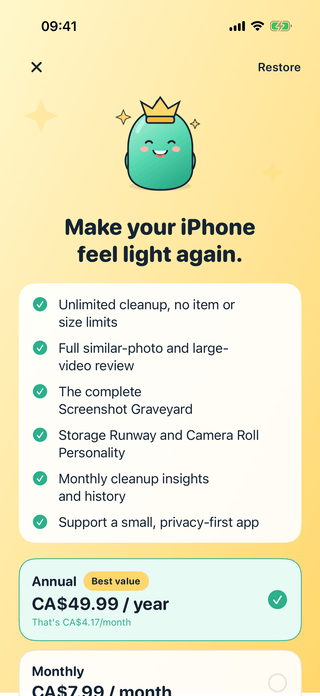
The BooClean Pro screen, captured in a simulator against the local StoreKit configuration. Prices shown there are the Canadian storefront in that test setup — your own App Store shows the price for your country.
App Store prices vary by storefront and are set per country. Subscriptions renew automatically unless cancelled at least 24 hours before the period ends, and are managed in your Apple Account settings. See the Terms of Use for the full detail.
No. Every scan, similarity comparison and size estimate runs on your iPhone. BooClean contains no networking code for your media — there is no server to send photos to, and no account to sign into.
Only your Photos library: similar photos, screenshots, large videos and other camera-roll clutter. BooClean does not touch app caches, system storage, other apps’ data or anything outside Photos, because iOS does not give apps access to those places.
Never. Everything you set aside collects in a Let Go queue, and deletion happens only after you open Final Review and confirm it. iOS then shows its own confirmation before anything is removed.
Keep or Drop is a decision session, not a deletion tool. Items you catch are kept. Items you miss twice across three rounds move to the Let Go review queue, and anything still undecided is kept. Nothing is deleted during a session — the session ends on a review screen where every let-go item can be rescued with one tap.
Deleting in BooClean moves items to Recently Deleted in the Photos app, where iOS keeps them for 30 days before removing them permanently. Recovery after that is handled by iOS and iCloud, not by BooClean.
No. BooClean Pro is offered as a monthly or an annual subscription only. There is no weekly plan, no countdown timer and no fabricated discount.
Subscriptions are billed by Apple, so they are cancelled through Apple: open the Settings app, tap your name, tap Subscriptions, choose BooClean and then Cancel Subscription. Cancelling stops the next renewal; Pro stays active until the current period ends.
Open BooClean, go to Settings and tap Restore Purchases — it is also available on the subscription screen. Use the same Apple Account that made the original purchase.
You pick how much room you want back — 5, 10, 20 GB or your own figure — and BooClean builds a plan from your most recent scan, ordered so the easiest decisions come first. The goal only counts space you actually recover, never what a plan estimates it might find. Setting a goal is optional and does not change how anything else in the app works.
Not on its own. BooClean makes a smaller copy, checks it opens properly, saves it to Photos and confirms it is there — and only then offers to let the original go. If you accept, the original joins the normal review queue and you still confirm before anything is deleted. If anything fails at any point, the original is untouched.
A place for decisions you are not ready to make. Instead of forcing keep or delete, you can put an item aside and come back later. Boo Box remembers the decision, not the photo — no duplicate copy is made, and nothing in it is deleted. When you do decide, letting go goes through the same review step as everything else.
When you hold the shutter, your iPhone records a burst — one moment captured many times. BooClean groups those shots, shows them one at a time with the rest as a filmstrip, and marks the one it would keep based on resolution, sharpness and any shot you already picked in Photos. You can keep as many as you like; it never forces a single winner.
Video compression depends on what is actually in the footage — a still shot of a wall compresses far more than a busy street. Before it runs, BooClean can only model the likely result, so it shows the figure with a ~. Once the smaller copy exists it reports the real before, after and saved sizes, and that is the number credited to a space goal.
Yes, with one honest caveat that the app states on screen: BooClean can only review the photos you have shared with it, so it will miss clutter in the rest of your library. You can change the selection at any time from the Manage Access button, or switch to full access in iOS Settings.
Still stuck? BooClean Support has the step-by-step guides.
Boo is ready when you are. iOS 18 or later, iPhone.
Private by design. Your photos stay on your iPhone.